







































































 Home
Home

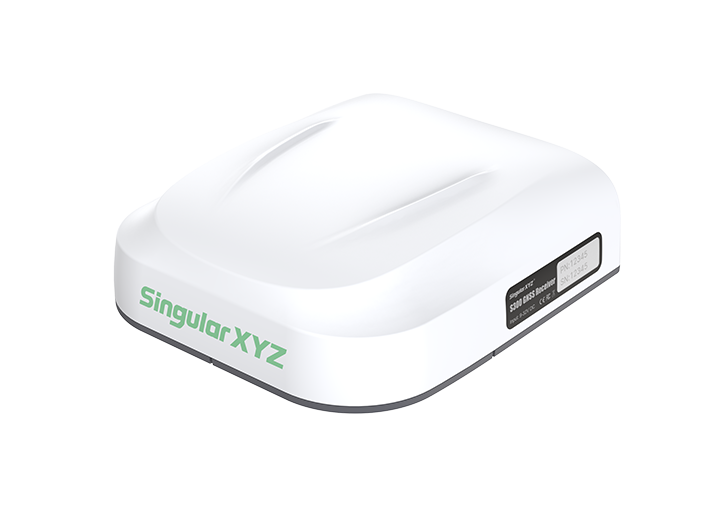
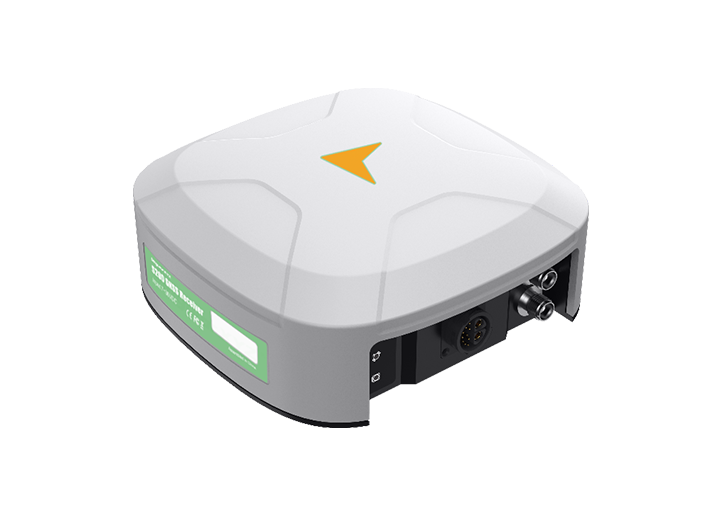
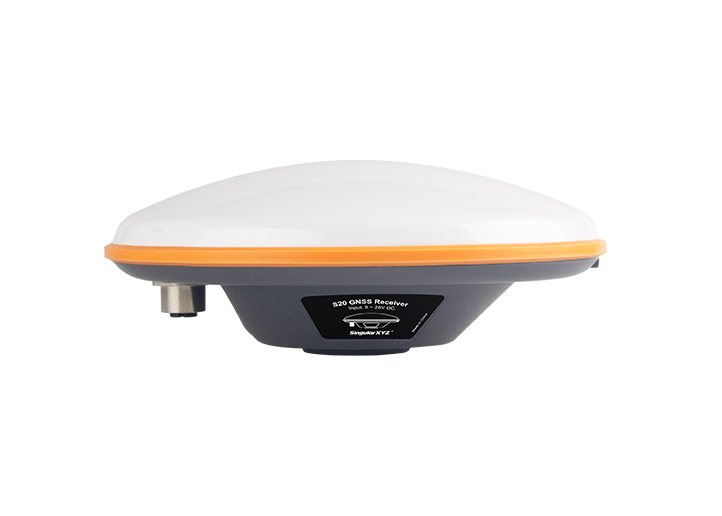
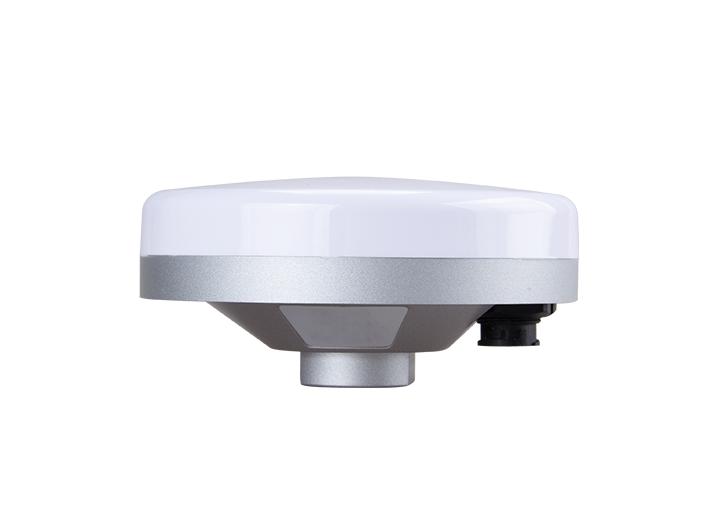
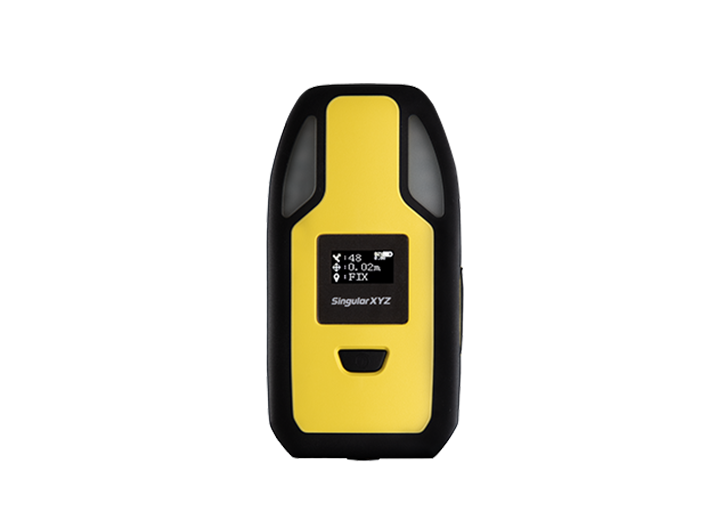
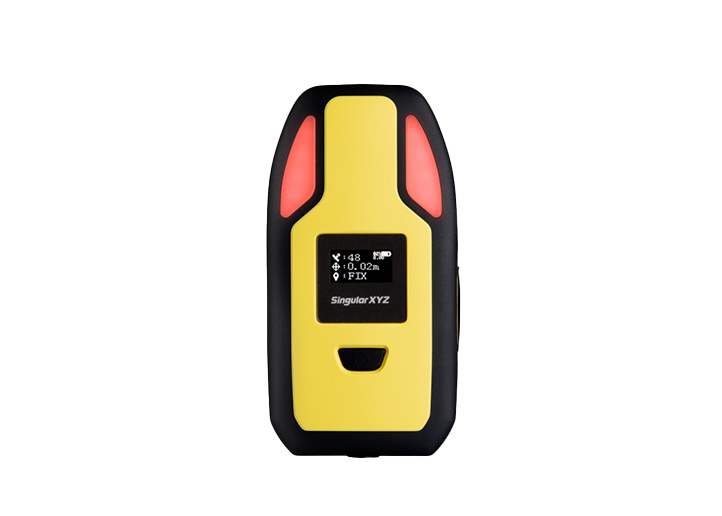
S20 GNSS Receiver
learn more





 2025-12-15
 Gus
Gus


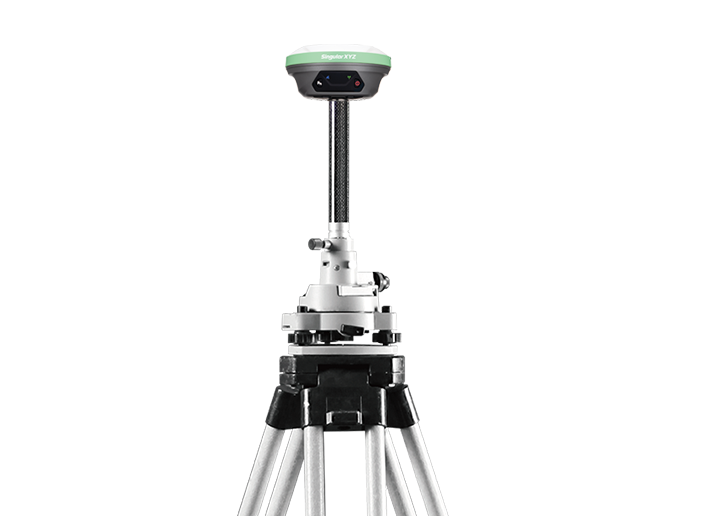
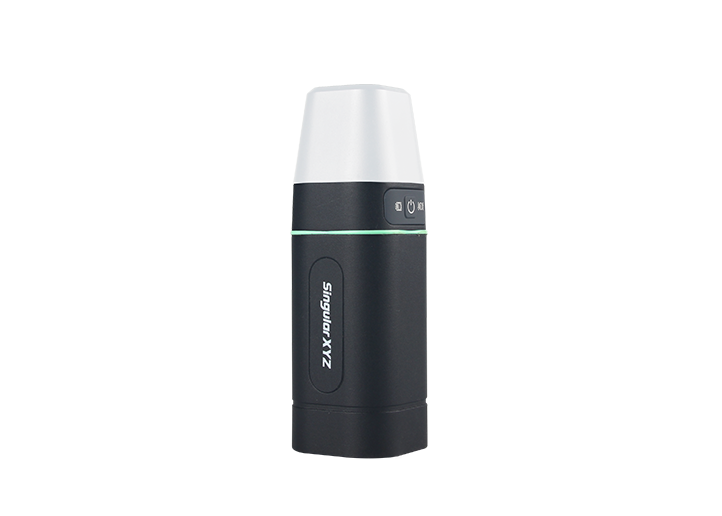
In an earlier Tech Chat, we explained how to set up the S20 smart antenna to output RTCM correction data as a base station. In this blog, we expand on that topic by introducing additional serial port commands—such as entering SBAS mode and adjusting receiver configurations—giving you more flexibility when working with the S20.
Before sending serial commands, make sure the hardware connection is properly set up.
Power on the S20 receiver
Connect the device to your computer using a DB9 serial cable
If your computer does not have a DB9 port, use a DB9-to-USB adapter cable
After the connection is established, open Device Manager on your computer to check the COM port assigned to the receiver.
To send commands to the S20, serial port communication software is required.
In this guide, QCOM is used as an example, but other serial port tools with similar functionality can also be used.
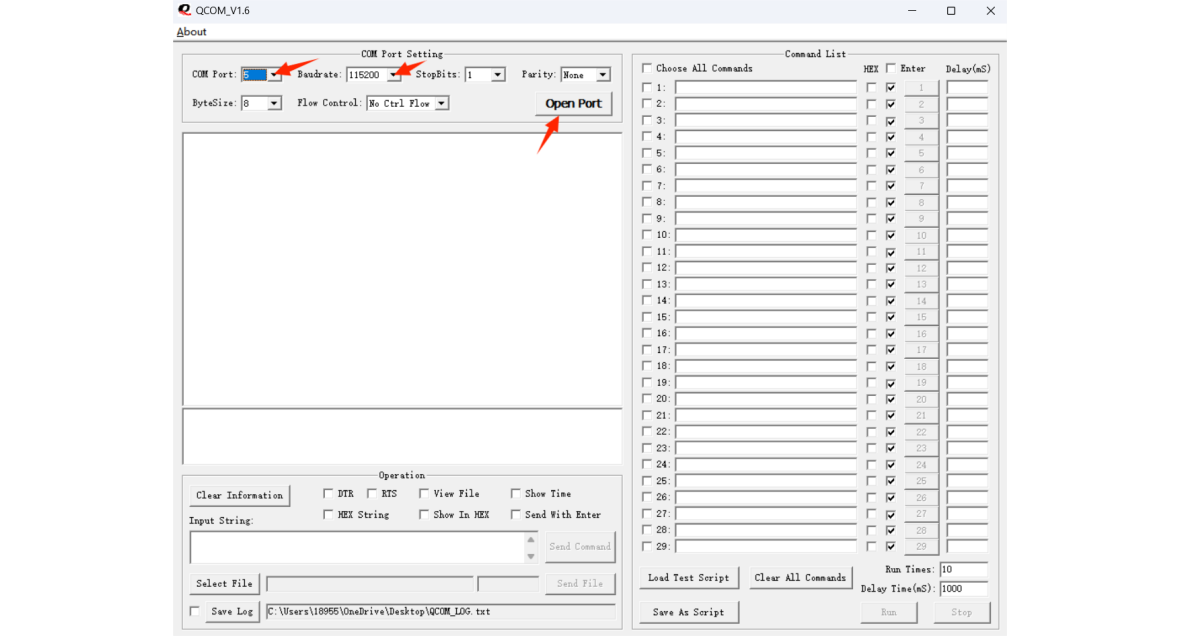
Open the serial port software
Select the corresponding COM port
Set the baud rate to 115200 bps
Click Open Port to establish the connection
Once the port is opened successfully, the receiver is ready to receive commands.
The following commands are commonly used for configuring the S20.
After each command is entered, the receiver will return a confirmation message indicating successful execution.
To enable SBAS with automatic correction system selection:
CONFIG SBAS ENABLE Auto
If you want to enable a specific correction system mode, replace "Auto" with one of the following options:
WAAS, GAGAN, MSAS, EGNOS, SDCM, ASECNA, KASS, SPAN, BDS
To disable SBAS:
CONFIG SBAS DISABLE
A correct return message indicates that the command has been applied successfully.

freset
This command clears saved receiver settings, satellite ephemeris data, and position information.
After execution, the serial port baud rate will be reset to 115200 bps.

To disable a satellite system (example: BDS):
mask BDS
To enable the satellite system again:
unmask BDS
The same commands can be used for other constellations such as GPS, GLO, or GAL.

saveconfig
This command saves the current configuration so that all previously entered settings remain effective after the receiver is restarted.

Note:
The S20 firmware must be upgraded to version V2.1.0.5 or later to support this function.
RESET
This command reboots the receiver.

unlogall
After executing this command, all data output through the serial port will stop.
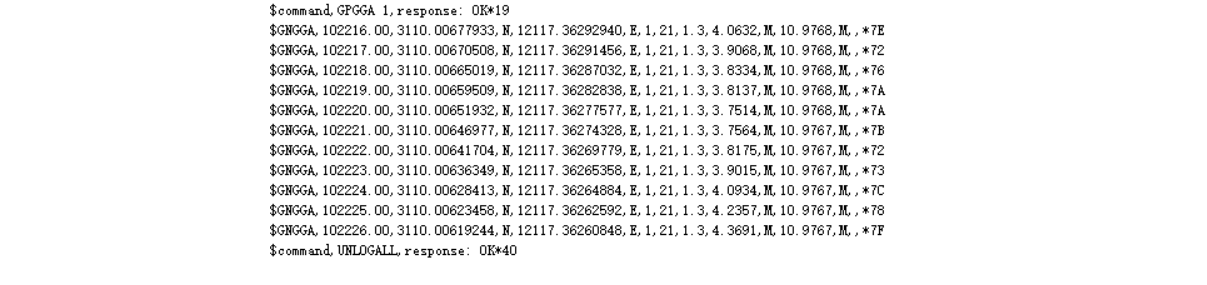
Using the serial port commands above, you can efficiently configure key functions of the S20 GNSS receiver. This approach provides greater flexibility for advanced users and technical support scenarios.
If you need additional commands or more advanced configuration options, please contact our technical support team for further assistance.