

































































 Home
Home
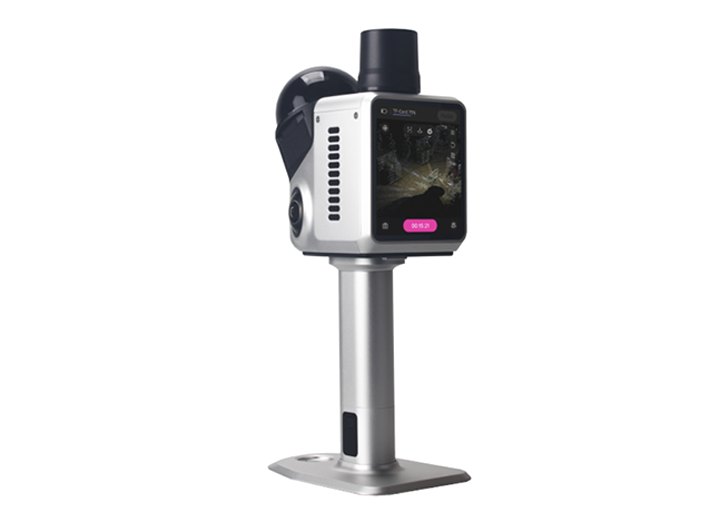
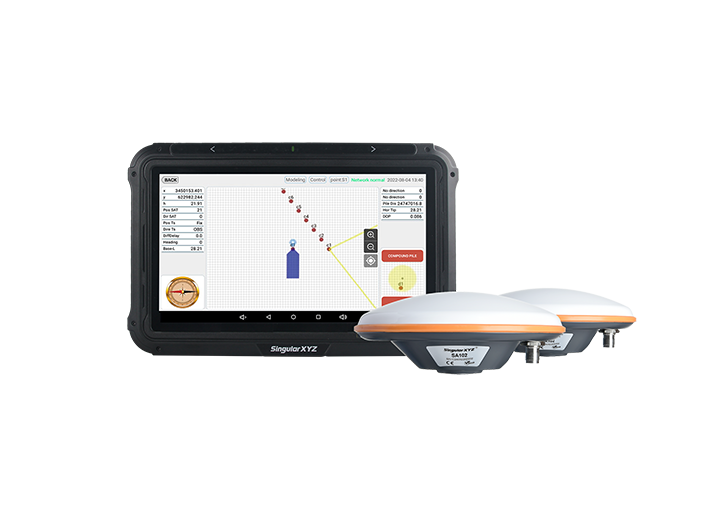
T8 Pro GNSS Tablet
learn more





 2025-12-23
 Jericho


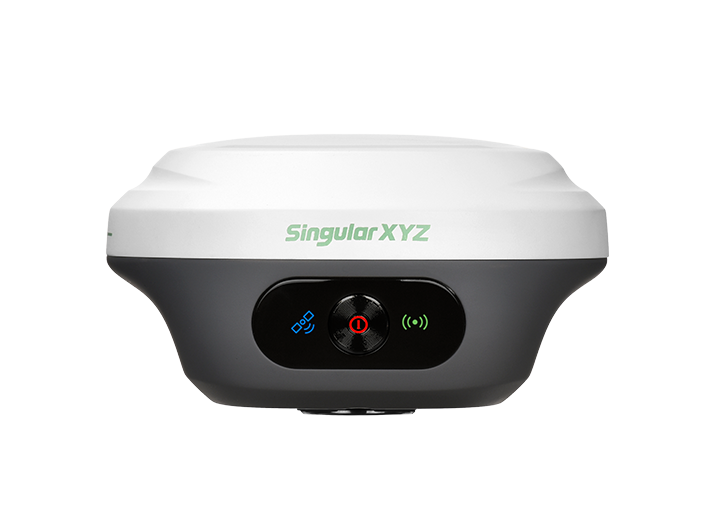
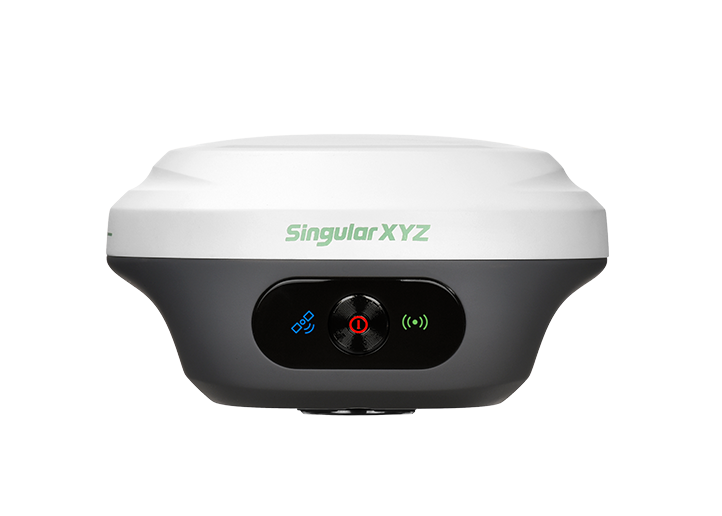
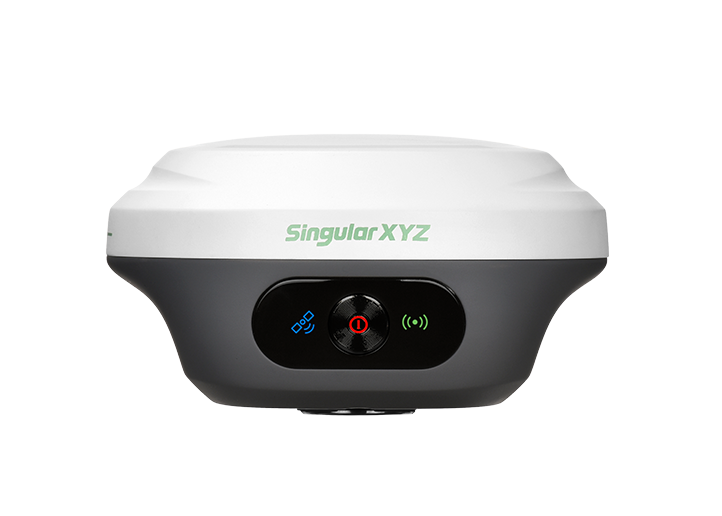
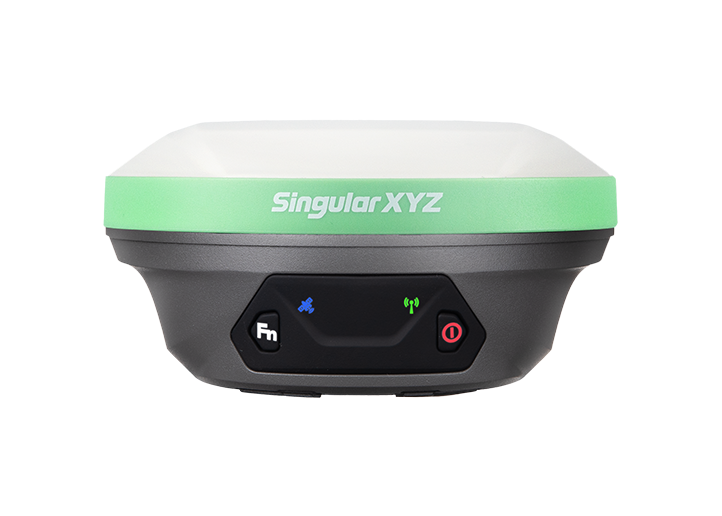
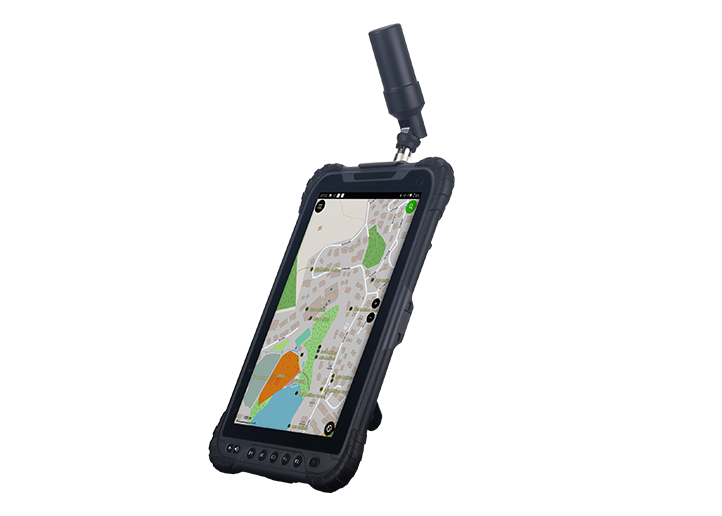
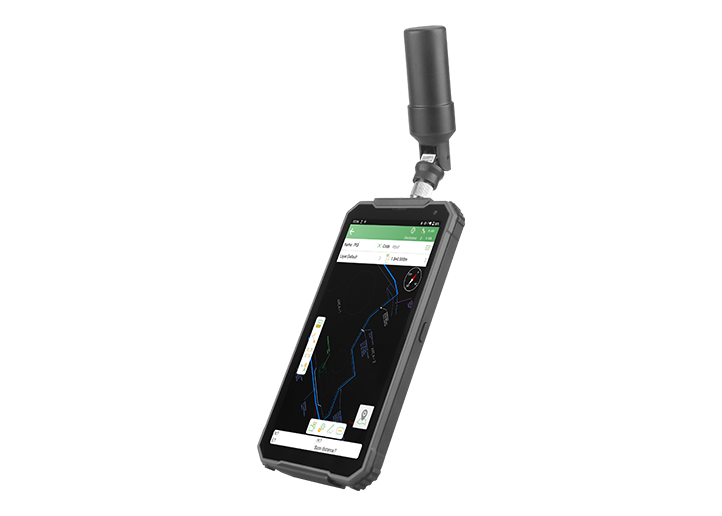
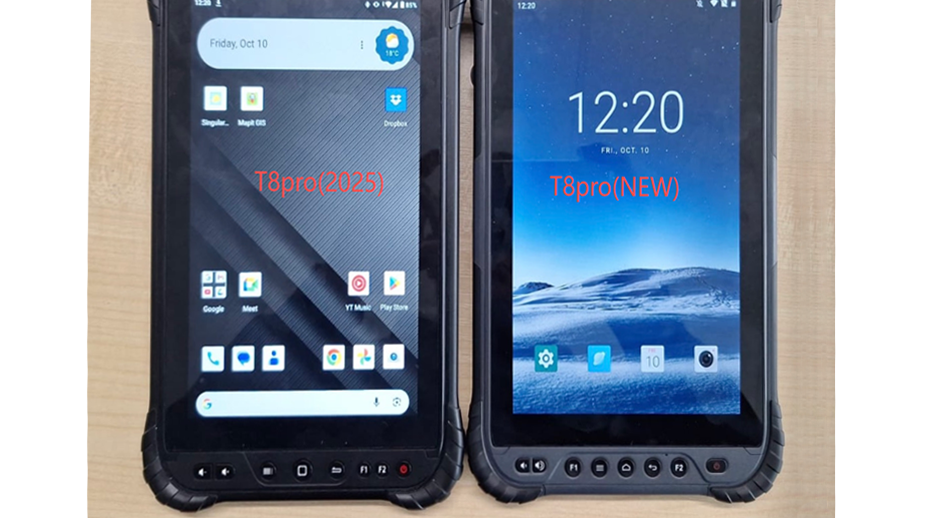
Earlier this year, the T8 Pro tablet received a product upgrade, which means there are now two versions of the T8 Pro in use. Although both versions deliver the same positioning accuracy and core functionality, there are minor differences in appearance and device model selection within the software.
To help users clearly understand these differences and avoid configuration issues, this blog explains how to distinguish between the two T8 Pro versions and how to select the correct model type in SingularPad.
Note:
Starting from SingularPad version V1.0.20251025 (including version 1025), the two T8 Pro versions have been merged into a single device type in the software. However, in earlier versions of SingularPad, the two versions still need to be distinguished during device selection. Details are explained below.
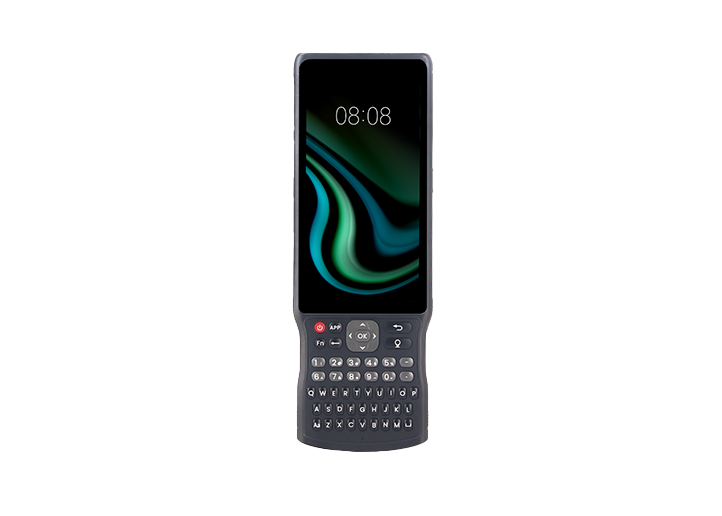
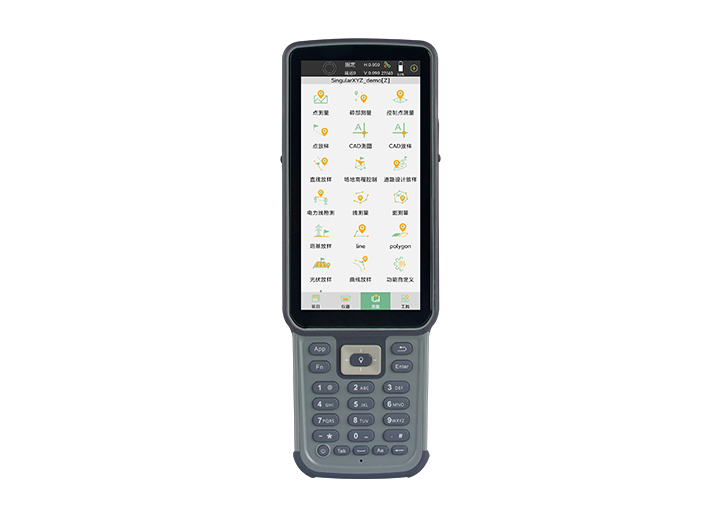
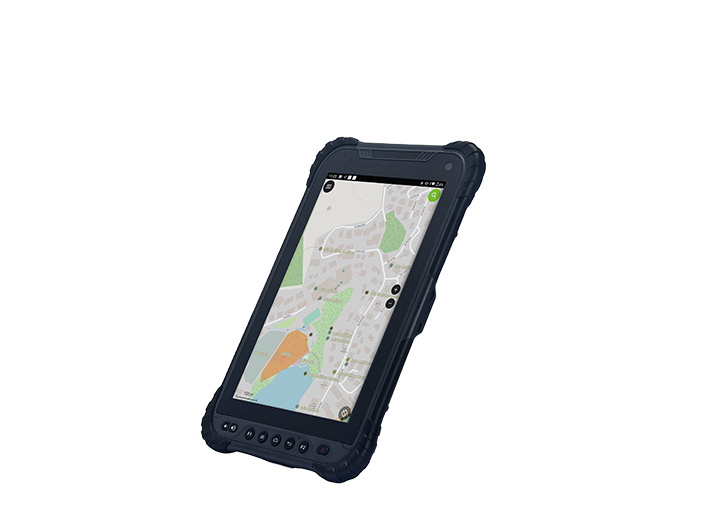
As a result of the upgrade, there are currently two versions of the T8 Pro. The two versions are identical in terms of functionality and positioning accuracy, with only slight differences in appearance. These differences are due to design adjustments made at different stages.
You can distinguish between the two versions by appearance and serial number (SN).
Serial Number Reference:
T8 Pro (2025 version): SN starts with "UA"
T8 Pro (New version): SN starts with "JM"
Before selecting the device type, it is recommended to check your SingularPad software version.
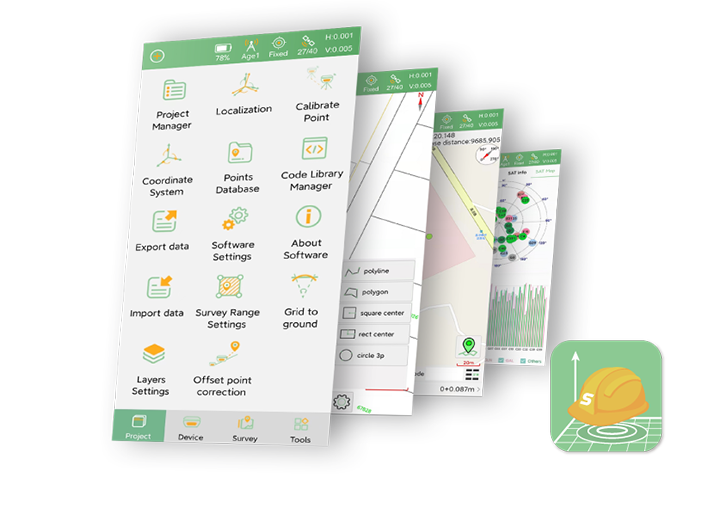
Open SingularPad and enter the Project interface to confirm the current software version.

Starting from SingularPad version V1.0.20251025 (including version 1025), the software no longer distinguishes between the two T8 Pro versions during device selection.
In versions earlier than 1025, users still need to manually select the correct device type based on the hardware version.
Select the corresponding device type based on the information above.
If your SingularPad version is newer than V1.0.20251025 (including version 1025), you can simply select "T8 Pro".
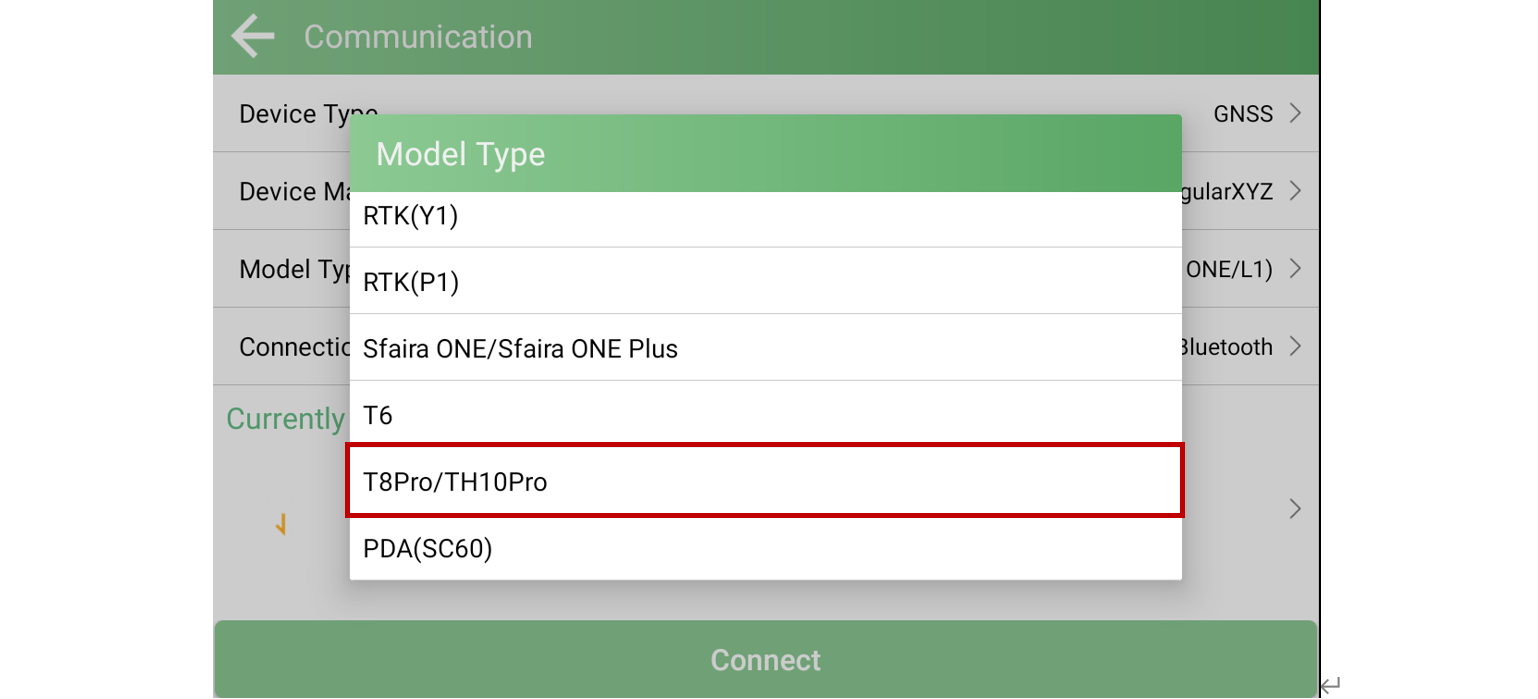
If you are using an earlier version of SingularPad, make sure to select the correct device type according to the device version.

Tips:
If an incorrect equipment type is selected, the device status may remain "Autonomous" even after logging into a CORS account, or the device may fail to connect via Bluetooth.

In the next blog, we will explain how to check whether your device supports PPP and how to enable PPP mode. We will also introduce how to upgrade the board firmware step by step.