








































































 Home
Home
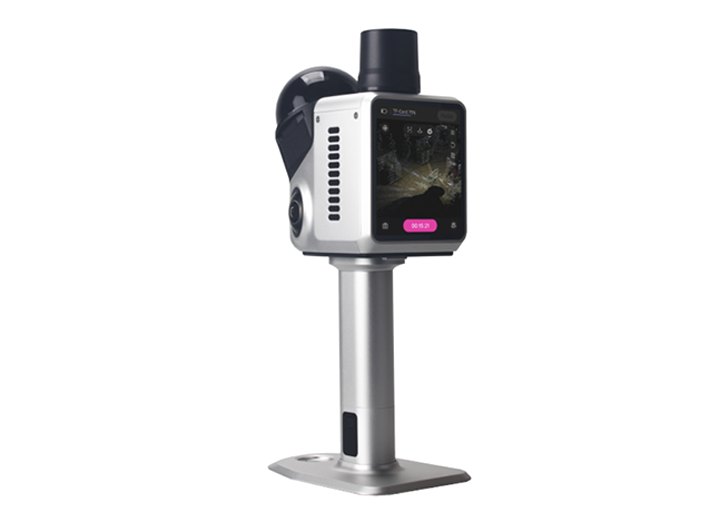
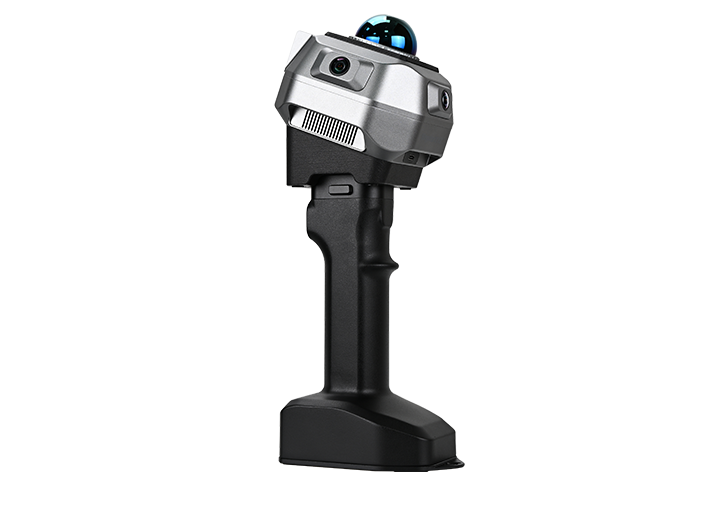
H1 Handheld 3D Laser Scanner
learn more







 2026-07-06
 Satoshi


The H1 is our first SLAM-based device, and for many users it is also their first experience with SLAM workflows. During real-world use, users may occasionally encounter issues when processing color point clouds, typically related to data quality or scanning conditions.
This FAQ explains two common situations: color point cloud processing failure and missing color point cloud results, along with their typical causes and solutions.
If you see a "Processing Failed" message during color point cloud generation, it usually indicates that the processing workflow cannot complete successfully.
First, make sure your computer meets the minimum system requirements for point cloud processing. Insufficient memory or GPU performance may cause processing to fail during computation.

TIP: You can find this information at the bottom of the processing interface. If all three configuration prompts are red, it means your configuration is inadequate. Please upgrade your configuration.
If the system meets requirements, the next step is to verify the image data in the project folder.
You can locate the project directory in the software and open the "image" folder to review the captured photos.
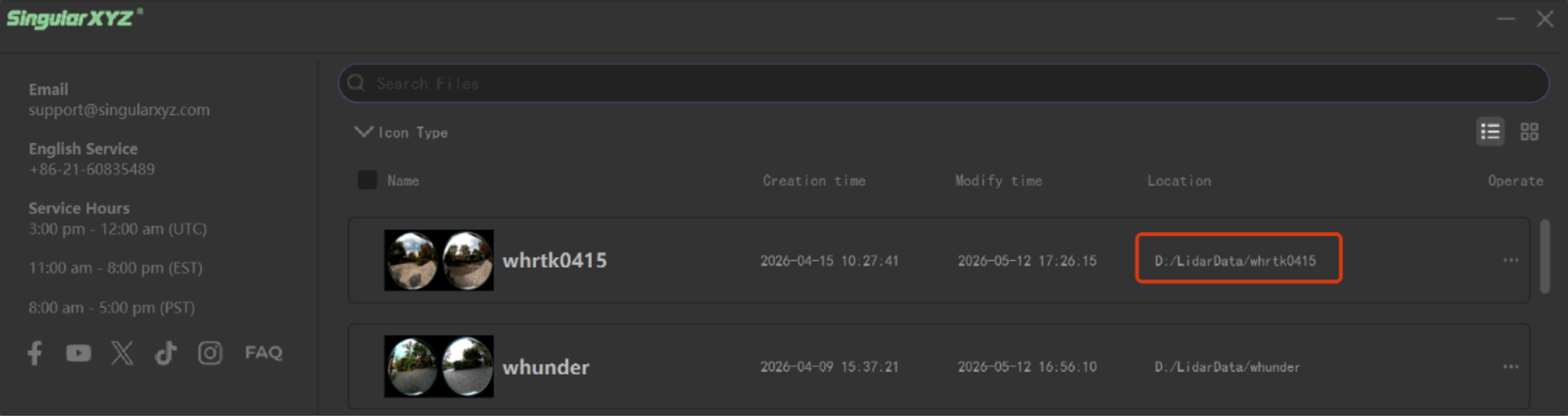
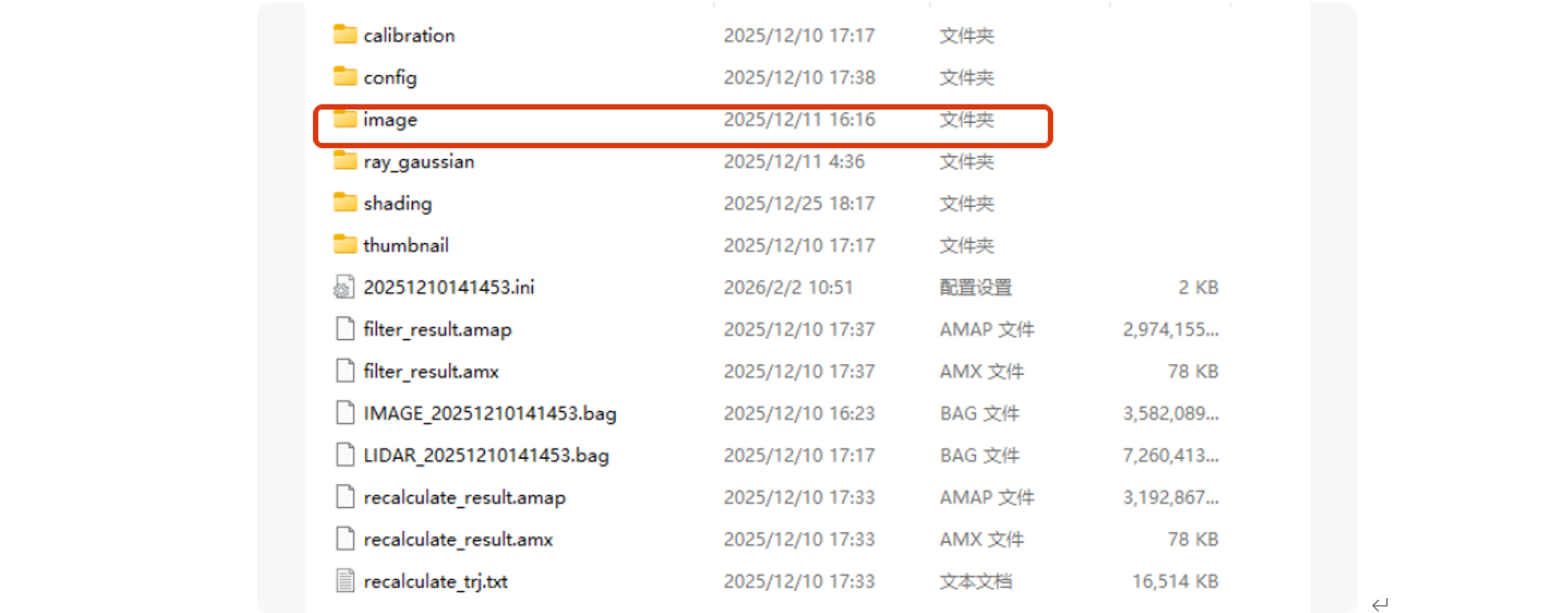
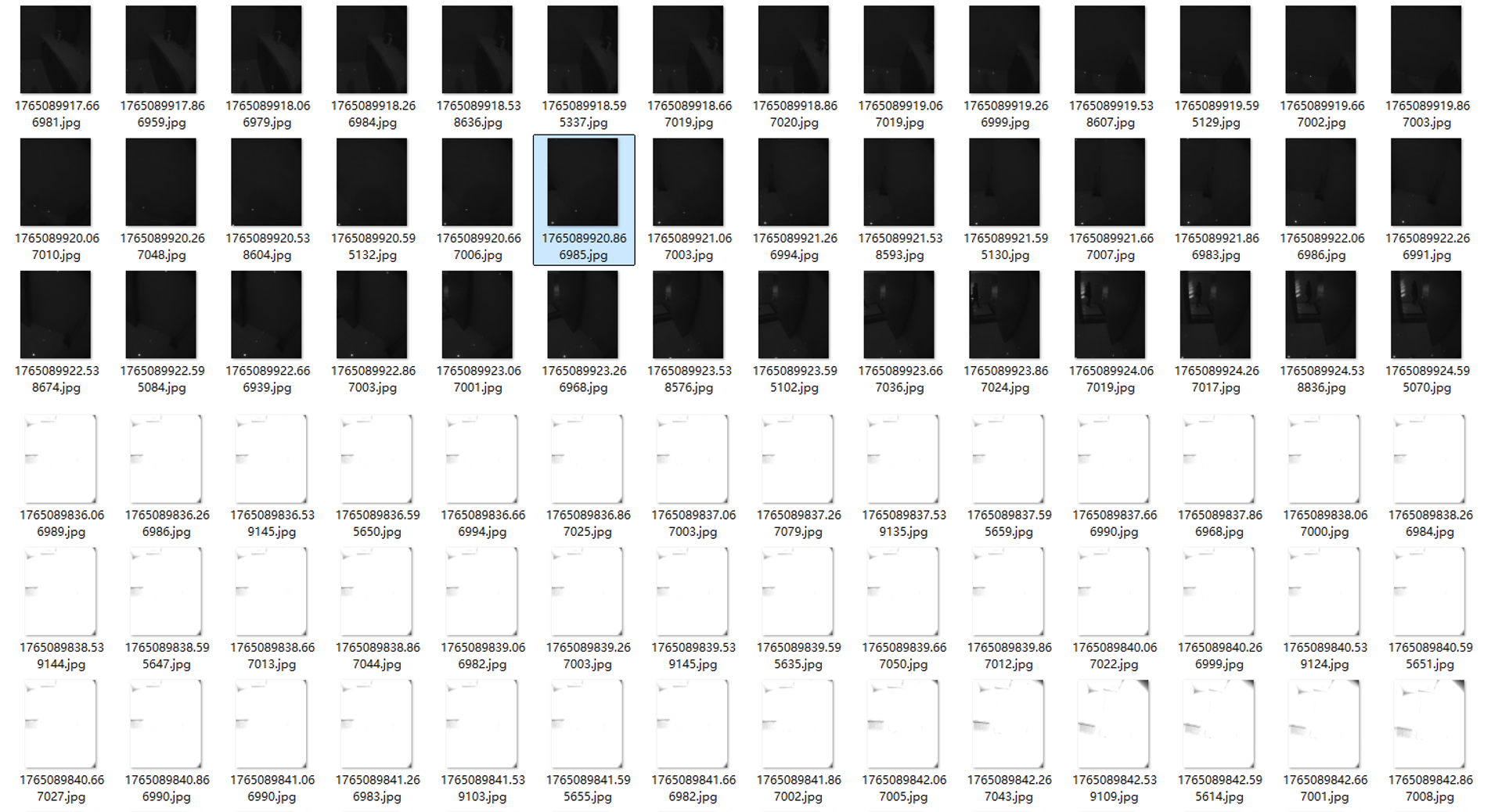
If most images appear too dark, overexposed, or unstable in exposure, the color information may be insufficient for successful reconstruction, leading to processing failure.
In some cases, the color point cloud may be generated successfully, but part of the colored result is missing compared to the original point cloud.
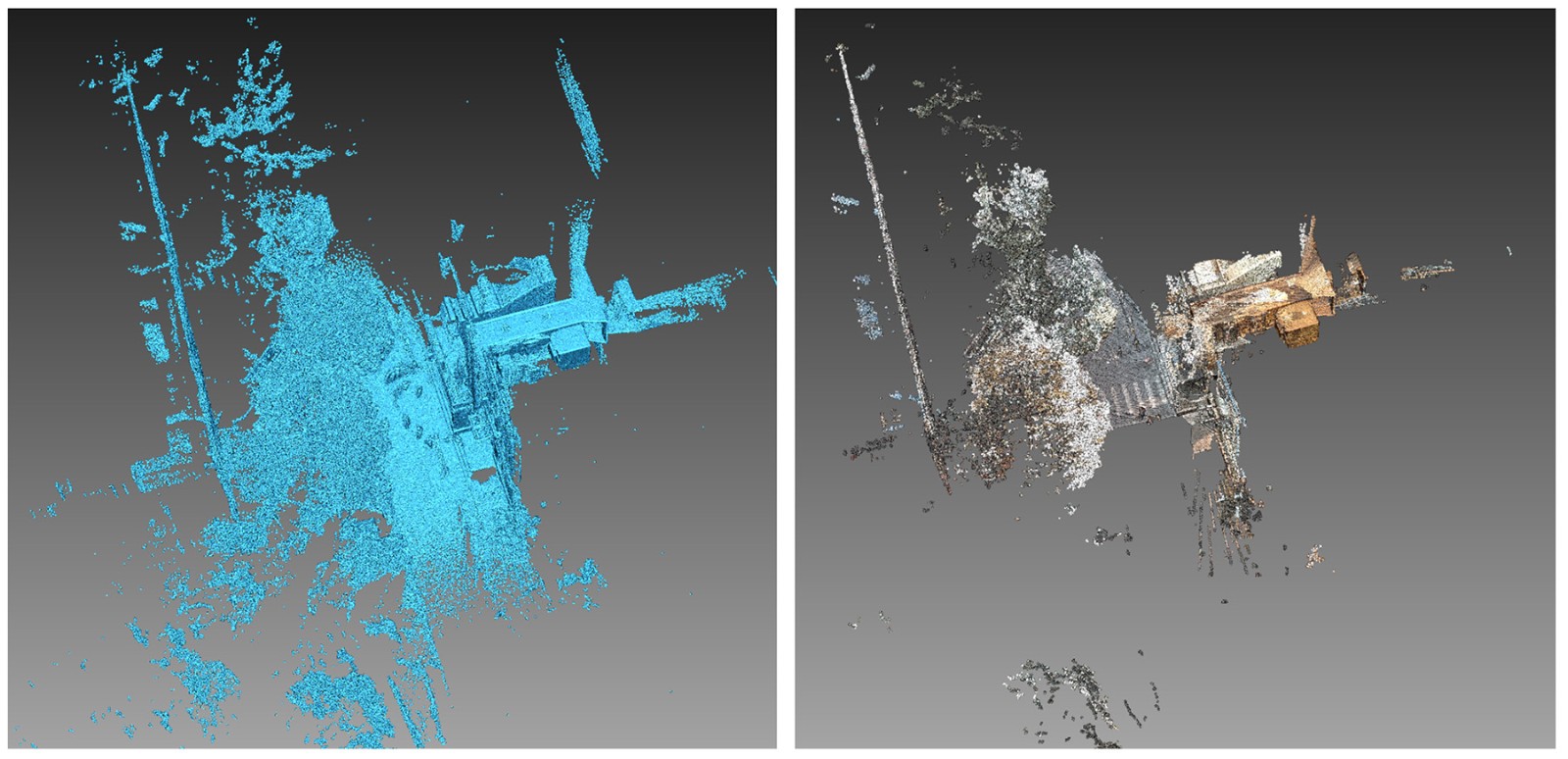
This typically happens when the front camera images contain blank frames, black frames, or missing visual data in certain sections.
Since color mapping relies on synchronizing image data with spatial position, incomplete or invalid images can result in partial colorization failure.
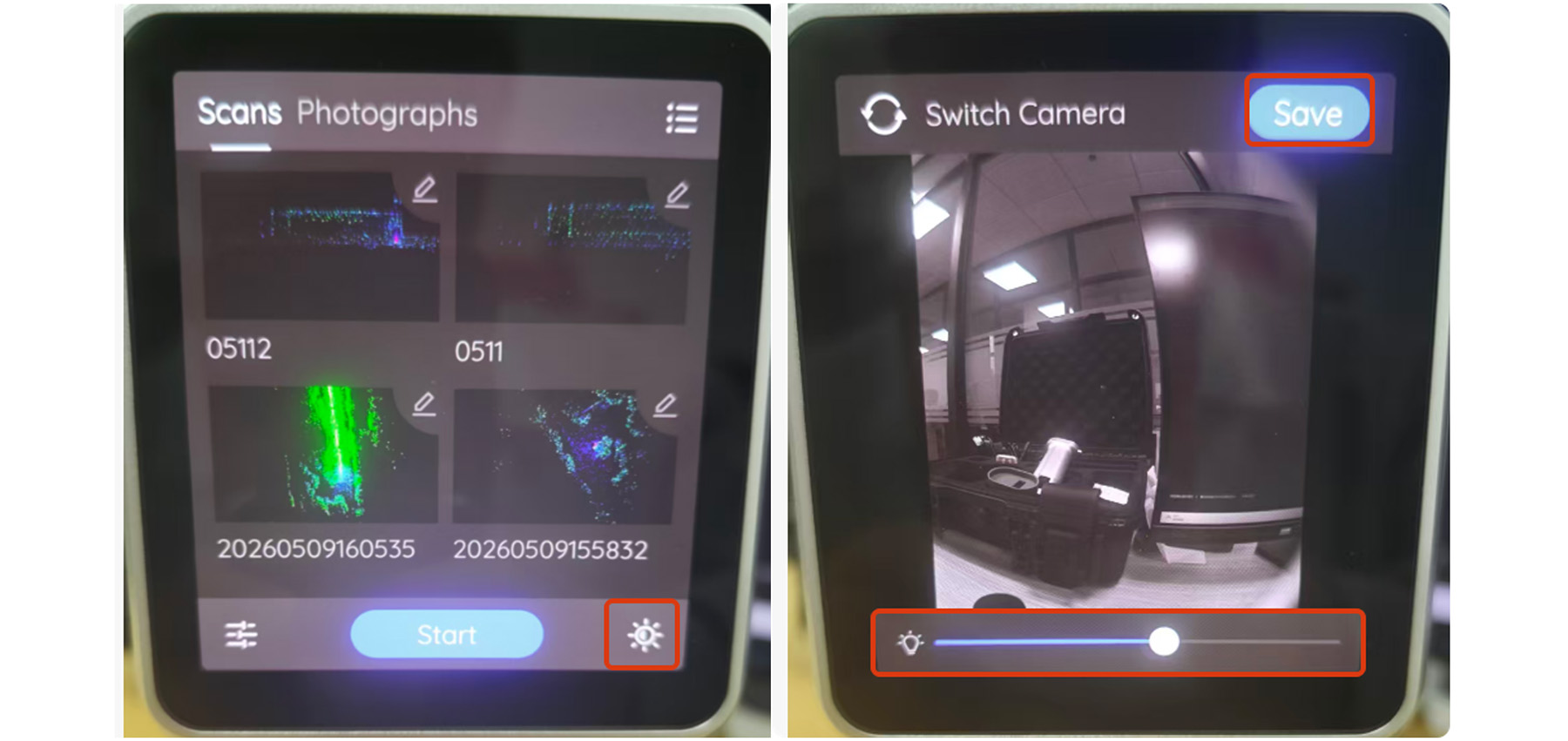
The recommended solution for both issues is the same: Before starting a scan, always check the front camera status and image quality to ensure stable and usable image data.
After powering on the device, go to the camera settings, select the front camera view, adjust the exposure parameter if necessary, and confirm that the preview image is clear before starting data collection.
If the captured images look normal but you still encounter processing issues, please contact technical support for further diagnosis.
Color point cloud quality is highly dependent on both system performance and image data integrity. Ensuring stable hardware performance and proper camera setup before scanning can significantly improve processing success rate and data quality.