













































 Home
Home

Horus Visual & Laser
GNSS Receiver
GNSS Receiver
learn more





 2026-10-20
 Kyrie
Kyrie


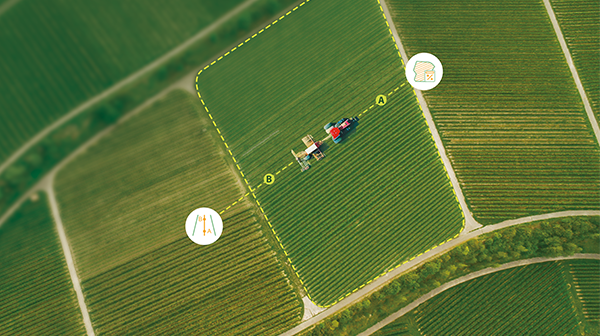
When surveying within a designated area, it is important to keep measurements within the required boundaries and avoid collecting unnecessary points outside the target area. However, determining these boundaries manually in the field can be challenging.
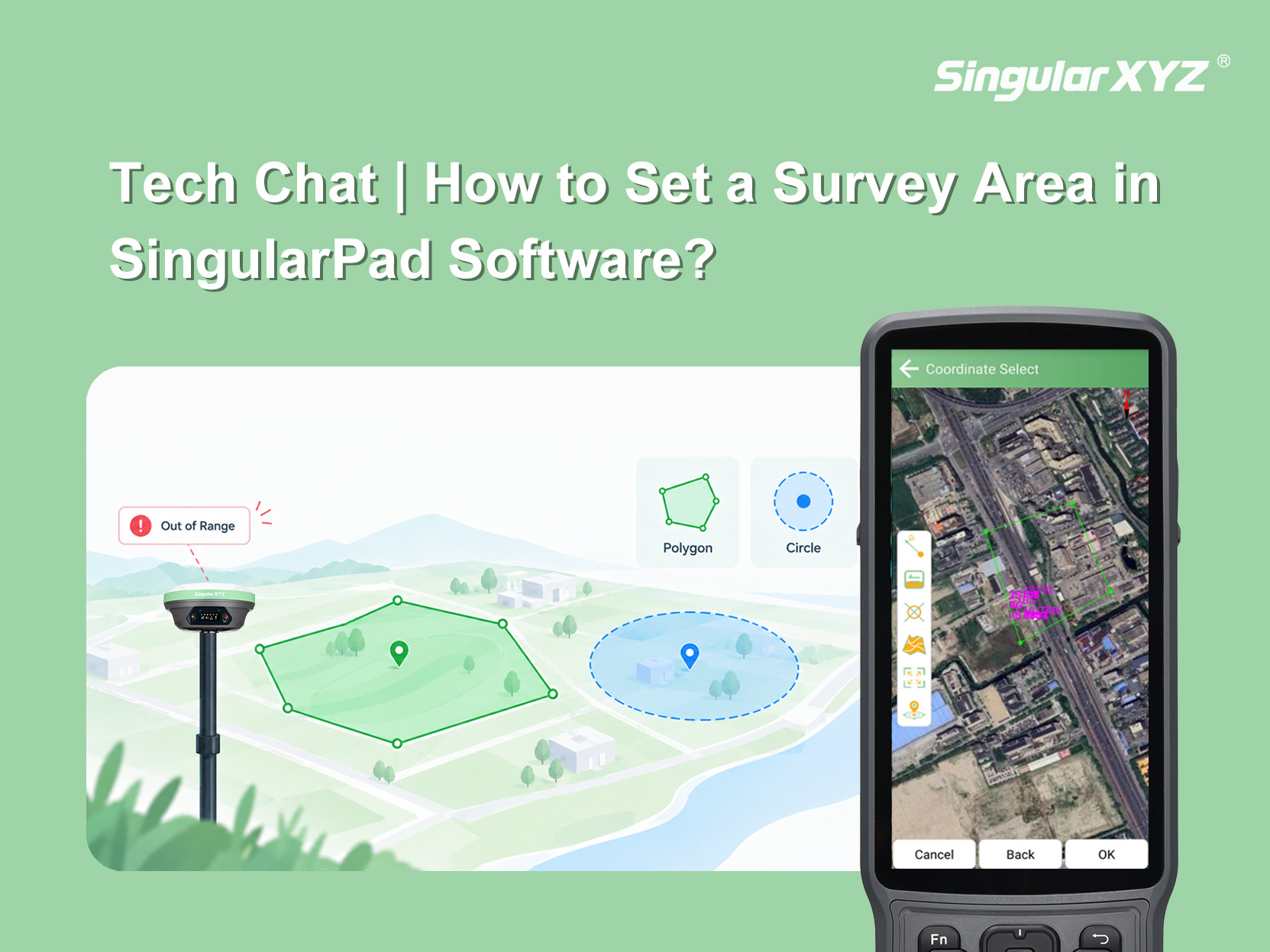
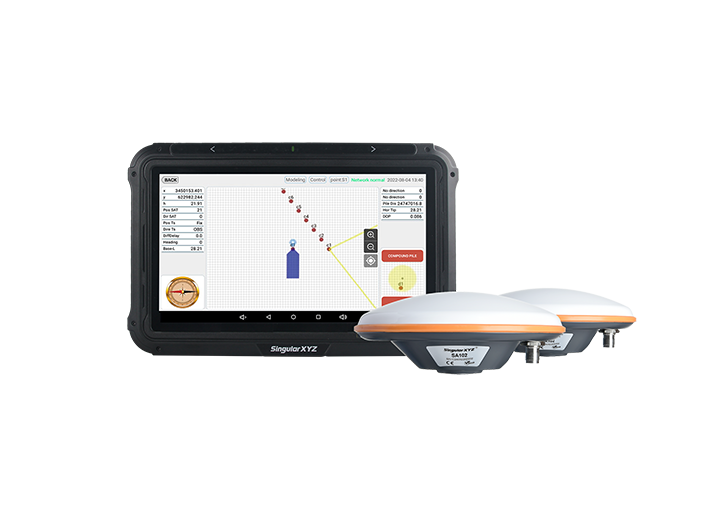
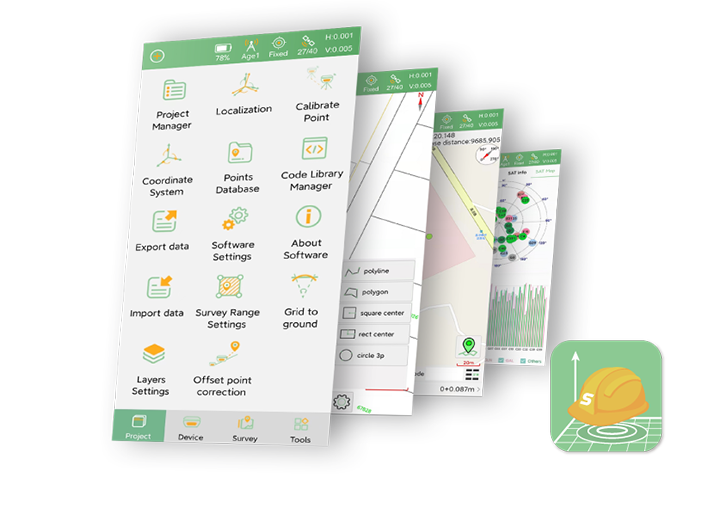
SingularPad's Survey Area Settings function allows you to define a survey area using a polygon or a circle. Once configured, the software alerts you when the receiver's position falls outside the designated area, helping you stay within the required boundaries during fieldwork.
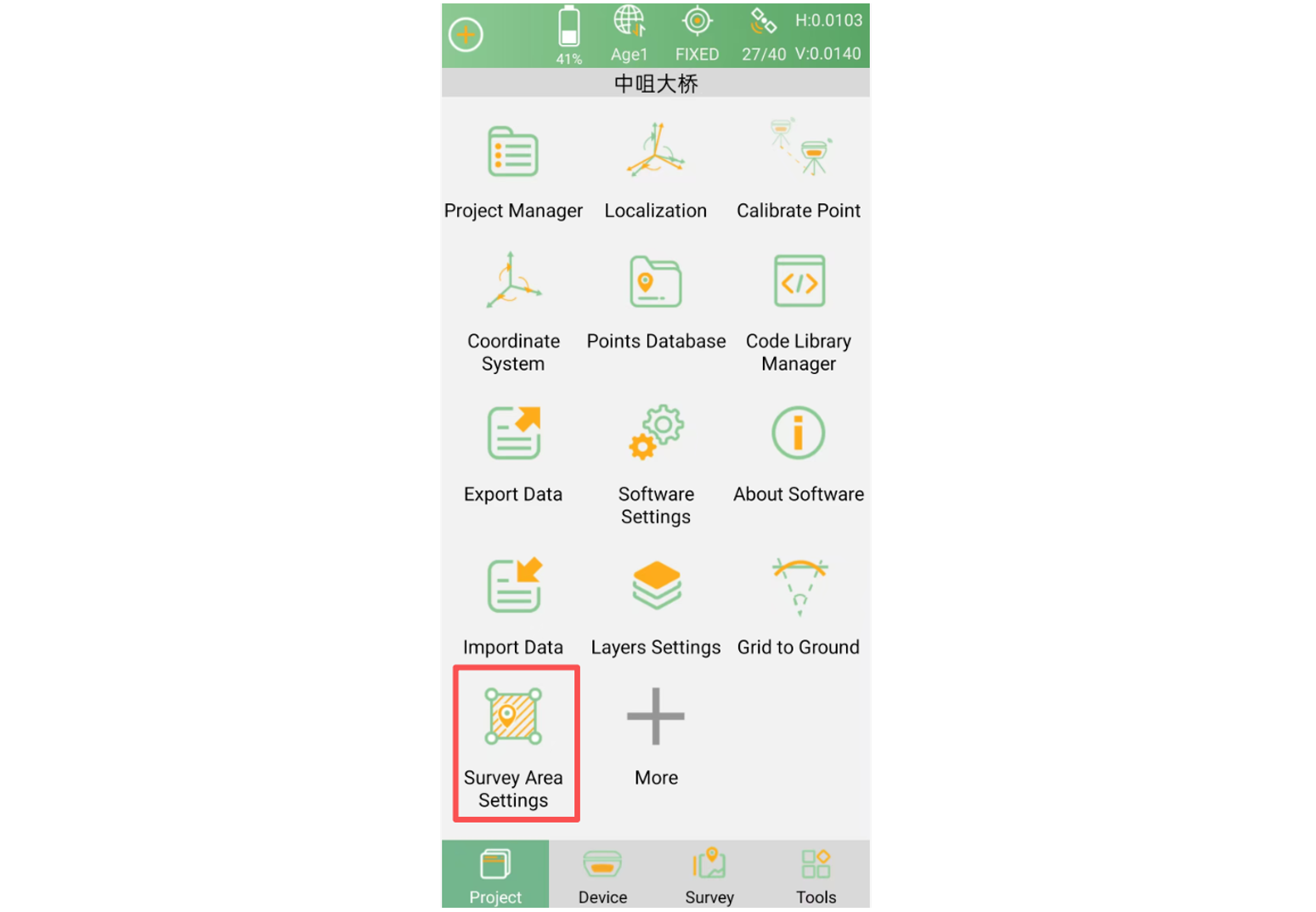
Connect the receiver to SingularPad via Bluetooth. Return to the main interface and tap Survey Area Settings. If the option is not displayed, tap More to find it.
Select Boundary - Polygon to define a polygonal survey area. You can create the boundary in three ways:
Select points on the map: Open the map and tap the desired locations to define the boundary vertices and form a polygon.
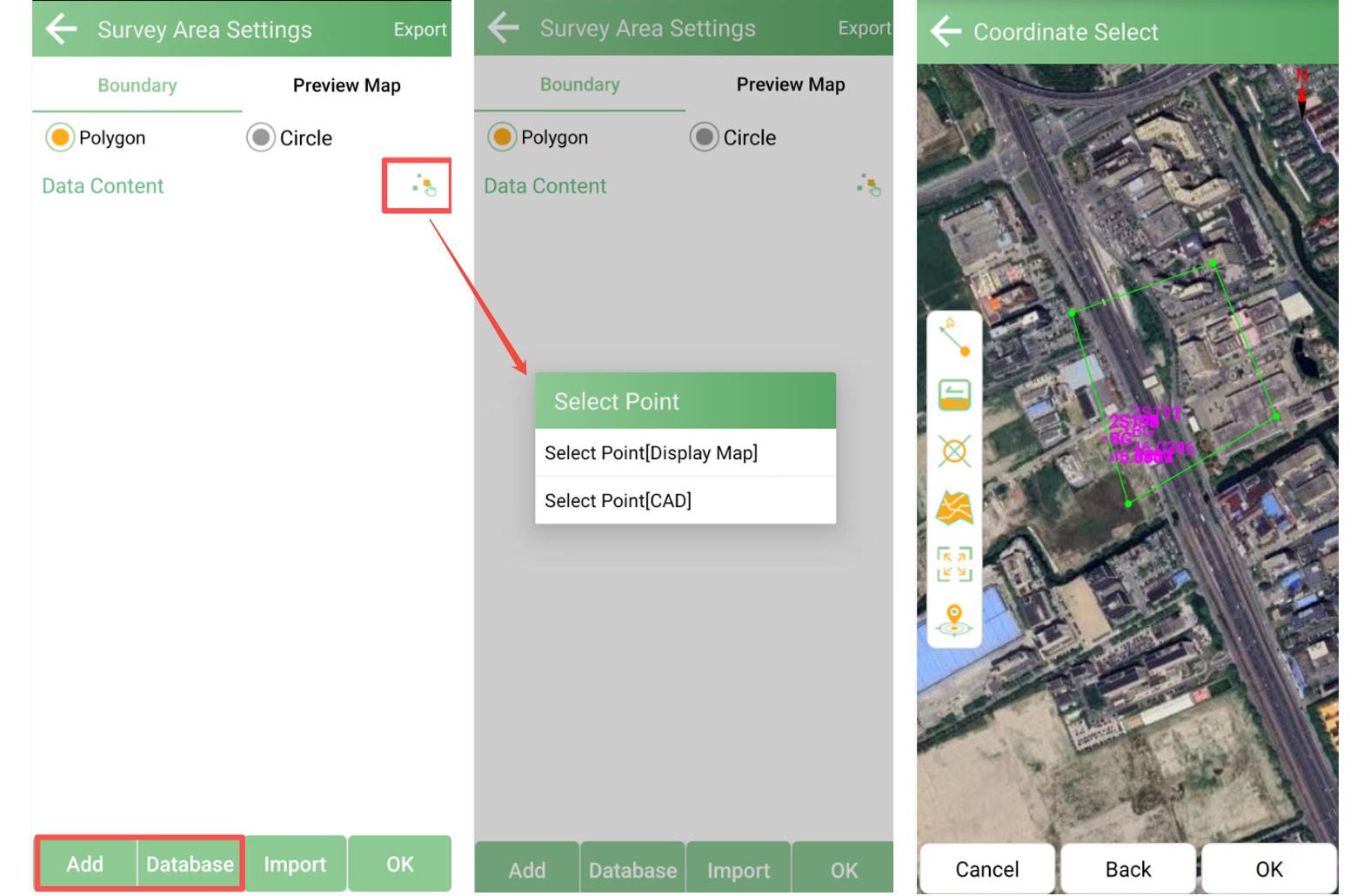
Select points on a CAD base map: Use points on the CAD base map to define the boundary.
Add measured points: Select existing points from the point library or manually add points to form the boundary.
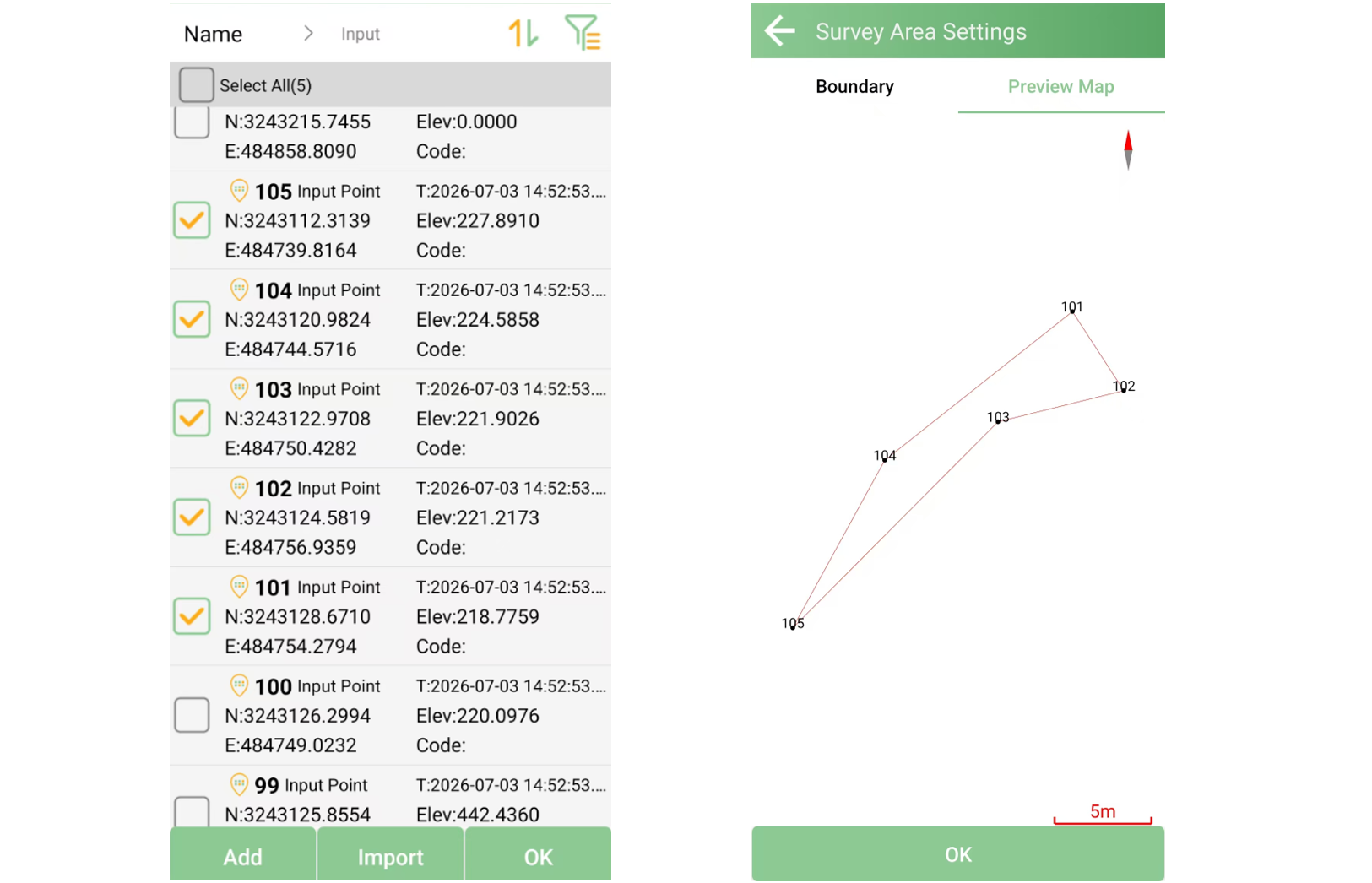
After defining the boundary, view the preview to check the selected area.
Select Boundary - Circle to create a circular survey area. You can select a center point from the point library or enter a measured point, then specify the radius in the configuration interface. Alternatively, you can select the center point directly from the map or CAD base map.
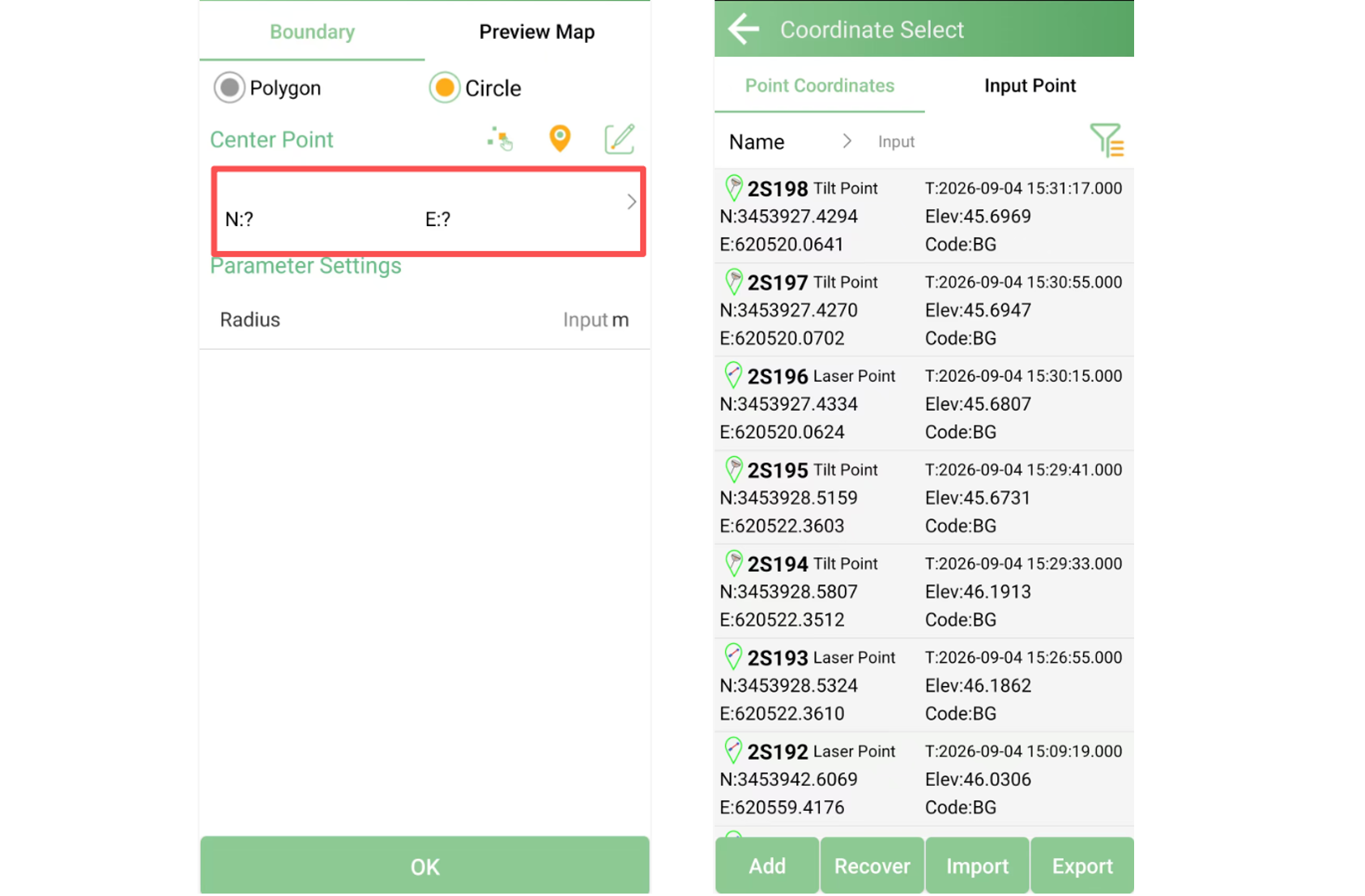
After setting the center point and radius, view the preview to confirm the circular boundary.
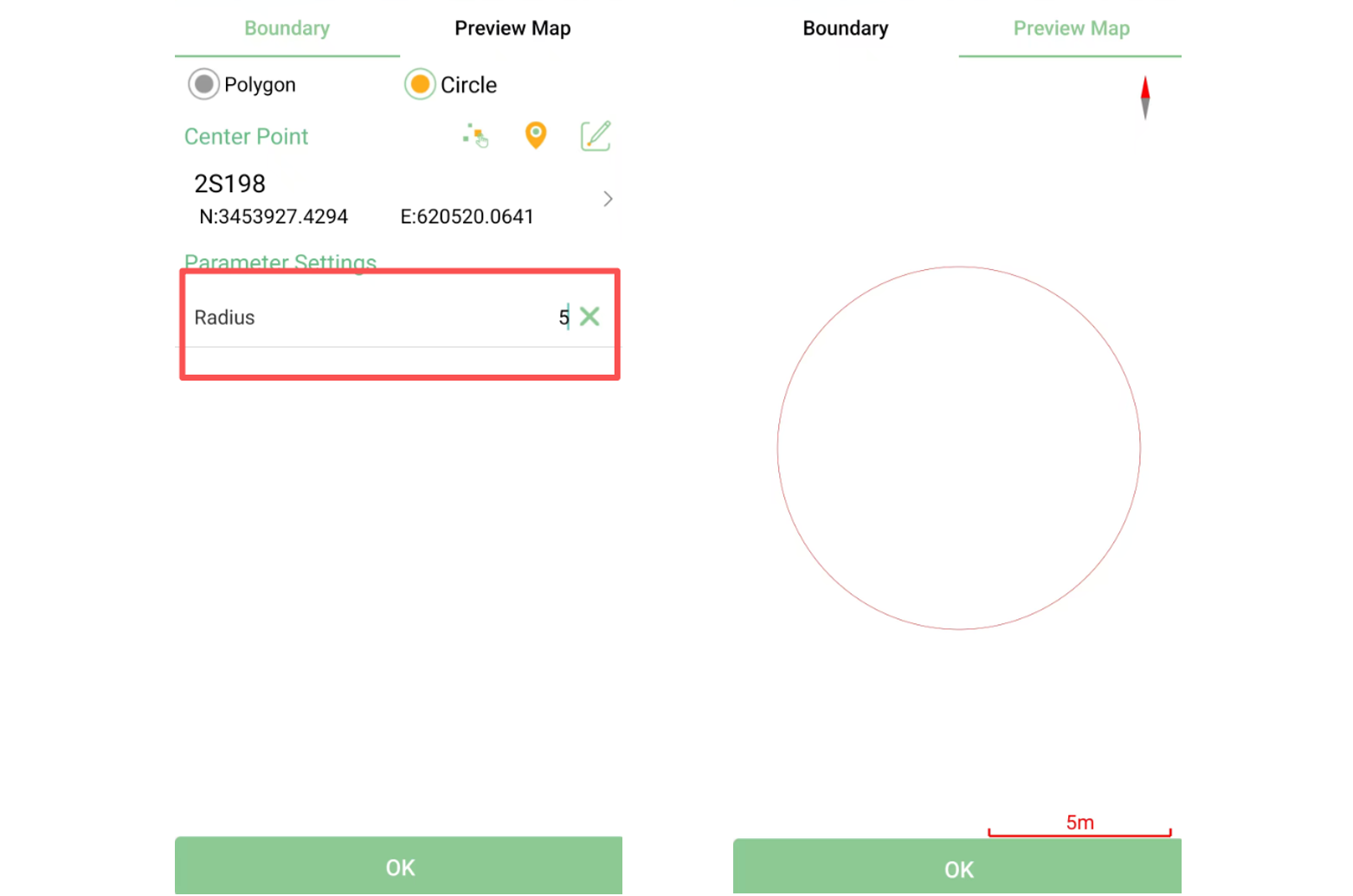
After confirming the boundary, tap OK to return to the survey interface.
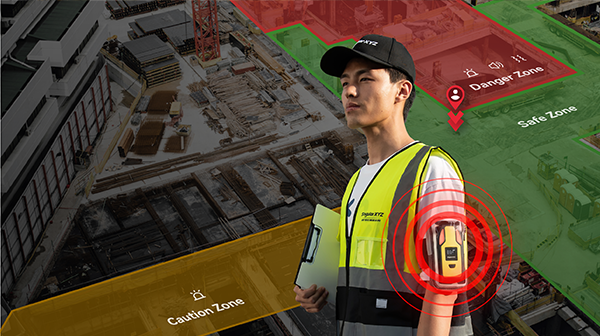
During surveying, if the receiver's position falls outside the defined area, an Out of Range message will appear in the center of the screen, alerting you that the receiver has moved beyond the designated boundary.
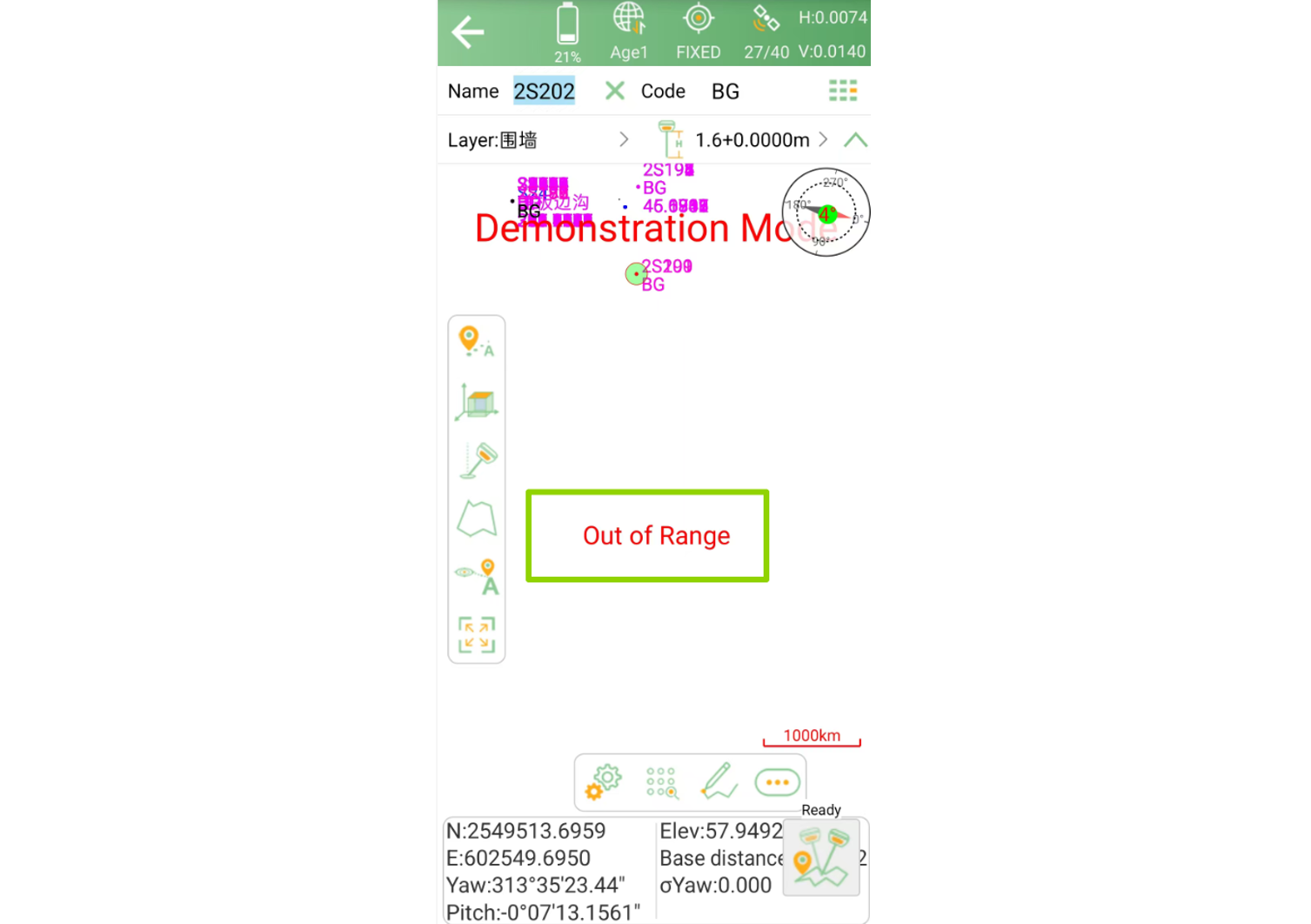
With Survey Area Settings in SingularPad, you can define polygonal or circular survey boundaries using map data, CAD base maps, or measured points. The out-of-range alert helps you identify when the receiver moves beyond the designated area, making it easier to follow survey boundaries and avoid unnecessary measurements.